Main Menu
From Home Screen, touch the Menu at bottom left of the display. (If this is not shown at home screen, touch screen to wake display first).
Main Menu Options
WiFi
See WiFi Setup and Troubleshooting for more information
Schedule
-
Create new schedule – (Set a time-based schedule).
-
Turn Off Schedule.
To enable Auto-Away / Geofencing, use the First Alert App.
See Scheduling and Auto-Away for more information.
Connect App
See Using the First Alert App for more information.
Screen Lock
See Screen Lock setting for more information.
Preferences
Preference menu options let you select how the thermostat displays information or responds to certain situations.
To access the Preferences menu:
-
Touch Menu.
-
Scroll to and select Preferences.
-
Select an option and follow prompts.
-
After any changes, touch Save to save your settings.
Preferences Options
-
Date & Time
-
Display
-
Reminder settings
-
Adaptive Recovery
-
Fallback Room (if wireless sensors are used)
-
Temperature Limits
-
Freeze Protection
-
Delete Local Data Logs
Display Settings
-
Screen Brightness: Adjust brightness or select auto brightness for models with ambient light sensor. Auto-brightness adjusts screen brightness so it decreases in low ambient light conditions.
-
Idle Screen (See Idle Screen)
-
Choose Idle Screen color and Style
-
-
Idle Screen Behavior
-
Transition on detection
-
Transition on Tap
-
-
Temperature Units
-
Farenheit
-
Celsius
-
-
Language
-
English
-
Francais
-
Español
-
-
Feels Like Temperature (Takes humidity in account to optimize comfort. See Feels like Temperature)
-
On
-
Off
-
-
App Change Behavior (Light up when temperature change is made by app)
-
On
-
Off
-
-
-
Temperature -3°F to 3°F or -1.5°C to 1.5°C
-
Humidity 12% RH to 12% RH
-
-
Clean Screen
-
Timer where display will not change settings when being cleaned.
-
Reminder Settings (Settings shown vary based on Setup settings)
-
Air Filter 1
-
Humidifier Tank/Water Filter
-
Humidifier Pad
-
Dehumidifier Filter
-
UV Bulb 1
-
UV Bulb 2
Adaptive Recovery
-
On
-
Off
Fallback room
-
Thermostat
-
The name of each wireless sensor used is shown below thermostat
Devices and Sensors (X7B doesn't have this setting)
-
Add a wireless sensor.
-
Identify a wireless sensor.
-
Thermostat:
-
Model
-
Temperature & humidity readings
-
Motion detected status
-
WiFi network
-
MAC ID
-
IPV54 address
-
Change room name
-
- Indoor Air Sensor:
Firmware version
Battery strength
Wireless signal strength
Temperature and Humidity readings
Options:
Rename sensor (select Room name).
Use motion (Allows you to choose not to allow motion to be used from a one or more sensors when “active rooms” is selected in the priority menu.
Motion Sensitivity (HIGH = Triggered when very little motion is detected, MEDIUM = triggered when a moderate amount of motion is detected, LOW = triggered only when a lot of motion is detected).
Delete (Removes that sensor from the thermostat).
Blink lights (Will make the light on the indoor sensor you selected blink to help identify which sensor is matched with each name in the sensor menu.)
Thermostat Information
-
MAC Address
-
IP Address
-
Date Code
-
Firmware Version
-
Model Number
-
Build Date
Equipment Status
-
System mode
-
Heat stages (on or off)
-
Cool stages (on or off)
-
Fan on or off
Matter
See Matter Setup for more information
Notifications
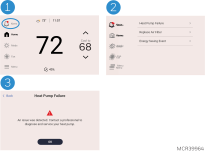
Only displayed when there are active alerts/notifications. Touch Alerts to see details.
Priority
If wireless indoor temperature/humidity/motion sensors are used, select which sensors are used for temperature control. Choose ACTIVE ROOMS (Rooms with sensors detecting motion) or SELECTED ROOMS (Manually select which sensors to use).
See Using Priority for more information.
.